
Start, time, and document a Session
Start a Cleanr Session on iPhone, complete its checklist, add before-and-after photos, and finish the work safely.
Open the scheduled Session on iPhone, start it when work begins, and finish its checklist and photo proof before completion. This keeps the operational record with the correct customer visit.
Start and work the Session
- Open Schedule → Day, then open the Session.
- Review the address, staff, services, and visit instructions.
- On the scheduled date, use Slide to Start. The Session changes to in progress and its elapsed time begins.
- Work through CHECKLIST and mark each finished item.
- Add the required proof under Before and After photos. Tap Add Photo, then choose Camera or Photo Library.
- When the work and proof are ready, use Slide to Complete.
A future Session cannot be started early. Cleanr shows Scheduled for … — can only start on the day until its scheduled business date.
Capture useful proof
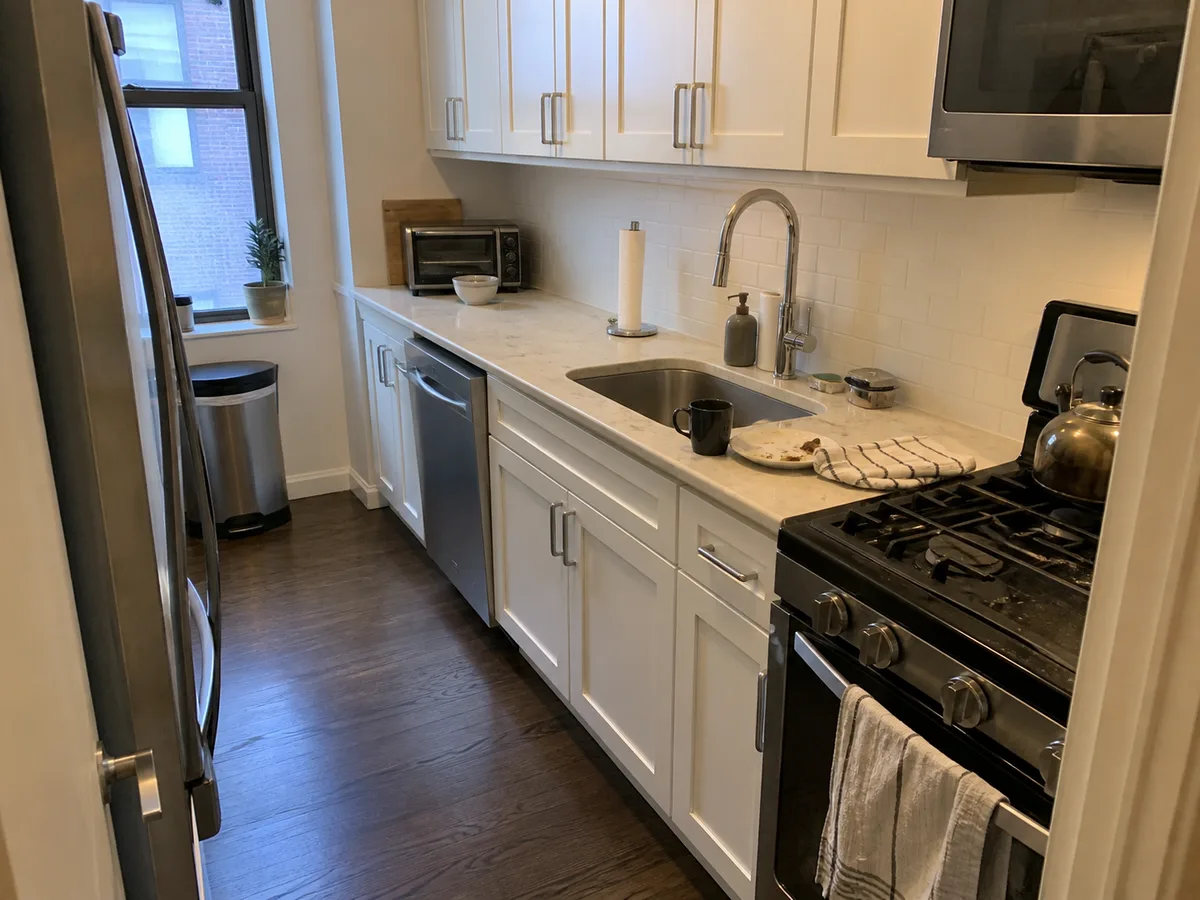
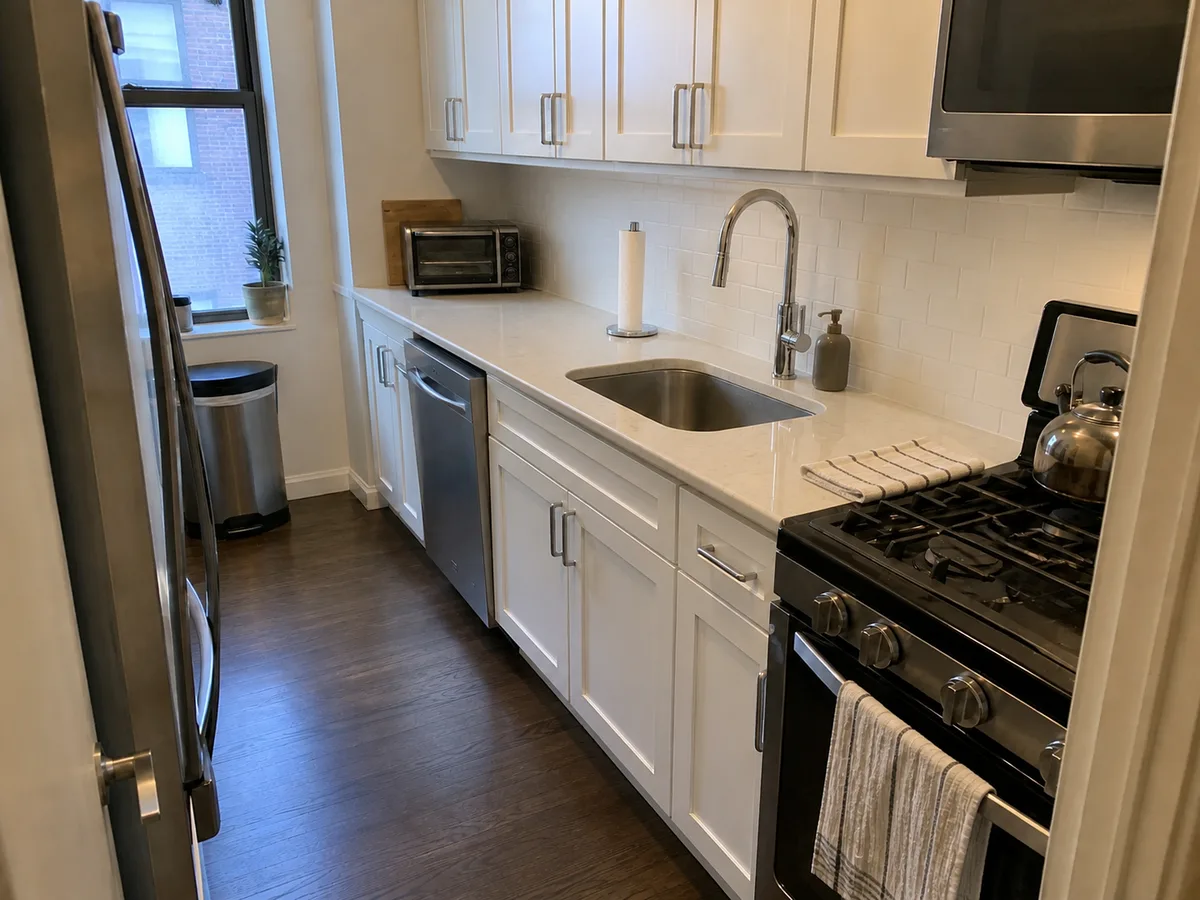
Use the same room and a similar angle for each before-and-after pair. Keep people, private documents, payment cards, access codes, and unrelated customer property out of the frame.
Notes, instructions, and issues
- Visit instructions are visible to the Cleaner; only an owner can edit them.
- INTERNAL NOTES are owner-only. Do not use them as a Cleaner handoff path.
- Both roles can select Report an issue for a problem tied to the Session.
Completion requirements come from the business’s checklist and proof settings. A Cleaner cannot bypass missing warning requirements. An owner can explicitly choose Complete anyway for warnings, but proof that is still loading, pending, or failed can block completion until it is retried. Confirm uploads and checklist changes are saved before leaving the property.
Related guides
Was this guide helpful?
Feedback sends only this guide's path and your selected answer—never free text or account information.