
Understand roles and schedule visibility
Learn what Business Owners and Cleaners can access and how owner-controlled staff settings affect the iPhone schedule.
Cleanr has two roles: Business Owner and Cleaner. Choose the role that matches how the person works; Cleanr does not offer custom roles or a granular permission builder.
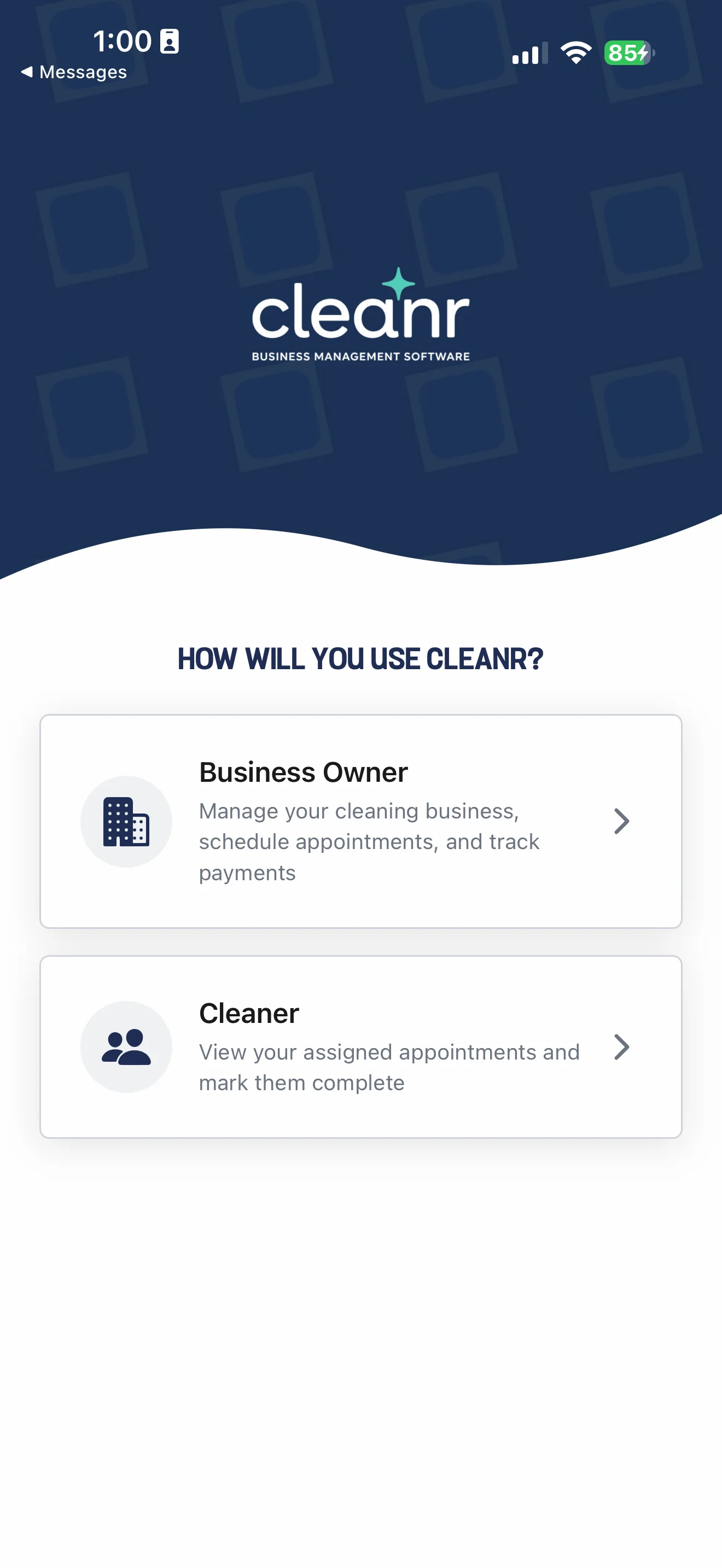
What each role can do
| Role | Supported workspace | Typical access |
|---|---|---|
| Business Owner | Web and iPhone | Customers, staff, scheduling, money, and business settings |
| Cleaner | iPhone | Assigned or permitted schedule, Timecard, and More |
The standard Cleaner workflow is on iPhone. Do not rely on cleaner access to Money, customer management, Settings, or unrelated business records.
Control staff schedule access
Owners can change two business-wide staff controls:
- Staff can see each other's schedules controls whether a cleaner can see other staff members' scheduled work.
- Staff can skip sessions is an owner setting, but the verified release-baseline iPhone UI shows the Skip Session action only to owners. Do not depend on a cleaner-facing skip control.
Open Settings → Staff and review the Staff Schedules and skip-session controls. Save the settings after making a change. Treat the skip control as policy configuration; the currently verified skip action is owner-only.
Open More, then find the staff scheduling controls under your business settings. Review the schedule-visibility and skip-session choices before saving. The currently verified Skip Session action is owner-only.
Schedule visibility does not grant general access to a customer's full record. Assign work and share schedules according to what each cleaner needs for the day.
Related guides
Was this guide helpful?
Feedback sends only this guide's path and your selected answer—never free text or account information.