
Set up automatic card payments and understand ACH
Enable auto-charge safely, prepare a customer's saved card, and use the supported alternative while ACH checkout is unavailable.
Cleanr can charge an authorized card on file when an owner completes and bills a Session. This requires settings at both the business and customer levels. Bank-account checkout is a separate feature and is not currently available.
Get the customer's explicit authorization before saving or charging a card. Never put a card number or bank-account number in customer notes, invoice notes, support tickets, or screenshots.
Prepare automatic card charging
Complete all four requirements before relying on auto-charge:
- The Cleanr payment account is fully connected to Stripe.
- The business-level Auto-charge saved cards setting is on.
- The customer has an authorized card on file.
- Auto-Charge is on for that customer.
- Open Settings → Invoicing & Payments.
- Under Get Paid Online, confirm the account says Connected, then turn on Auto-charge saved cards.
- Open Customers, choose the customer, and select Edit.
- In Card on file, use Save Card or Update Card and finish the secure Stripe form.
- Turn on the customer's Auto-Charge preference and choose Save Changes.
- Open More and confirm Payments setup is complete.
- Under Payment Options, turn on Auto-Charge.
- Open Customers, choose the customer, and use Add Card on File or Update in the Payment section.
- Tap Edit, turn on the customer's Auto-Charge preference, and tap Save.
Saving a card and enabling auto-charge are separate actions. A customer can have a card on file while remaining on manual invoicing.
Charge the card after a Session
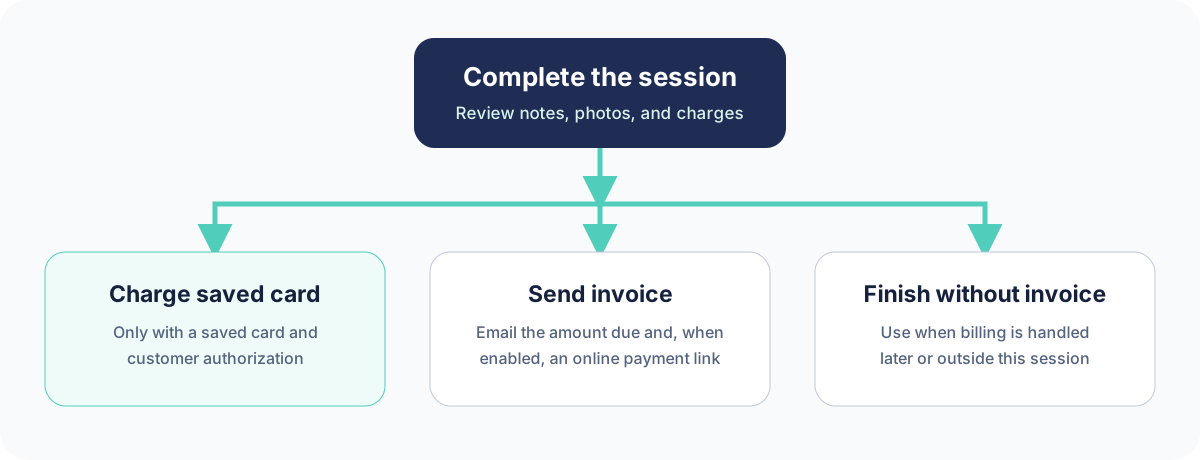
When an owner completes supported per-Session work on the web, review the customer, line items, extra charges, tax, and final total. Choose Charge & Send Receipt to charge the saved card. Choose Send Invoice when you intentionally do not want to charge it for that Session.
On iPhone, review the customer, base price, and extras before choosing Charge & Send Receipt. The completion sheet's Total and charge-button amount are pre-tax; Cleanr calculates eligible tax afterward, so the card charge can be higher than the amount shown on that sheet. Use the web completion flow when you need to review the tax-inclusive total before charging. Choose Send Invoice when you intentionally do not want to charge the saved card.
If the card is declined and Cleanr can confirm that no charge occurred, Cleanr can fall back to an invoice payment request. Read the result before taking another action. If Cleanr says the payment is still syncing or needs attention, do not retry or collect another way until the first attempt is resolved. See Fix a payment problem.
Fixed-schedule and milestone-billed Appointments use their configured billing schedule instead of creating a second per-Session invoice at completion.
Current ACH limitation
Cleanr displays a Bank Payments (ACH) toggle after Stripe setup, but the verified invoice checkout currently offers card payment only. Turning on the toggle does not add a bank-account option to the customer checkout.
Until ACH checkout is implemented, use a payment method you arrange outside Cleanr:
- Open Settings → Invoicing & Payments → Offline Payment Methods.
- Add safe customer-facing instructions for the external method and save the changes.
- After the money has actually settled outside Cleanr, open the invoice and use Mark as paid. Choose the matching method or Other.
- Open More → Invoicing → Invoice Notes.
- Add safe payment instructions in the Invoice Instructions sheet and save them.
- After the money has actually settled outside Cleanr, open the invoice and use Mark as Paid. Choose the matching method or Other.
Recording an external bank payment updates the invoice record; Cleanr does not initiate, verify, or move that bank transfer. Never mark the invoice paid while the external payment is still pending.
Related guides
Was this guide helpful?
Feedback sends only this guide's path and your selected answer—never free text or account information.