
Mark a customer as tax exempt
Exclude tax from a customer's future Cleanr invoices, verify the next total, and keep exemption records outside Cleanr.
Mark the customer tax exempt before creating the invoice that should exclude tax. Cleanr checks the customer's current tax preference when it calculates a new invoice.
The Cleanr toggle does not validate an exemption or store a certificate. Confirm eligibility under the rules that apply to your business and keep the supporting certificate, ID, expiration, and renewal records in your own tax files.
Turn on Tax Exempt
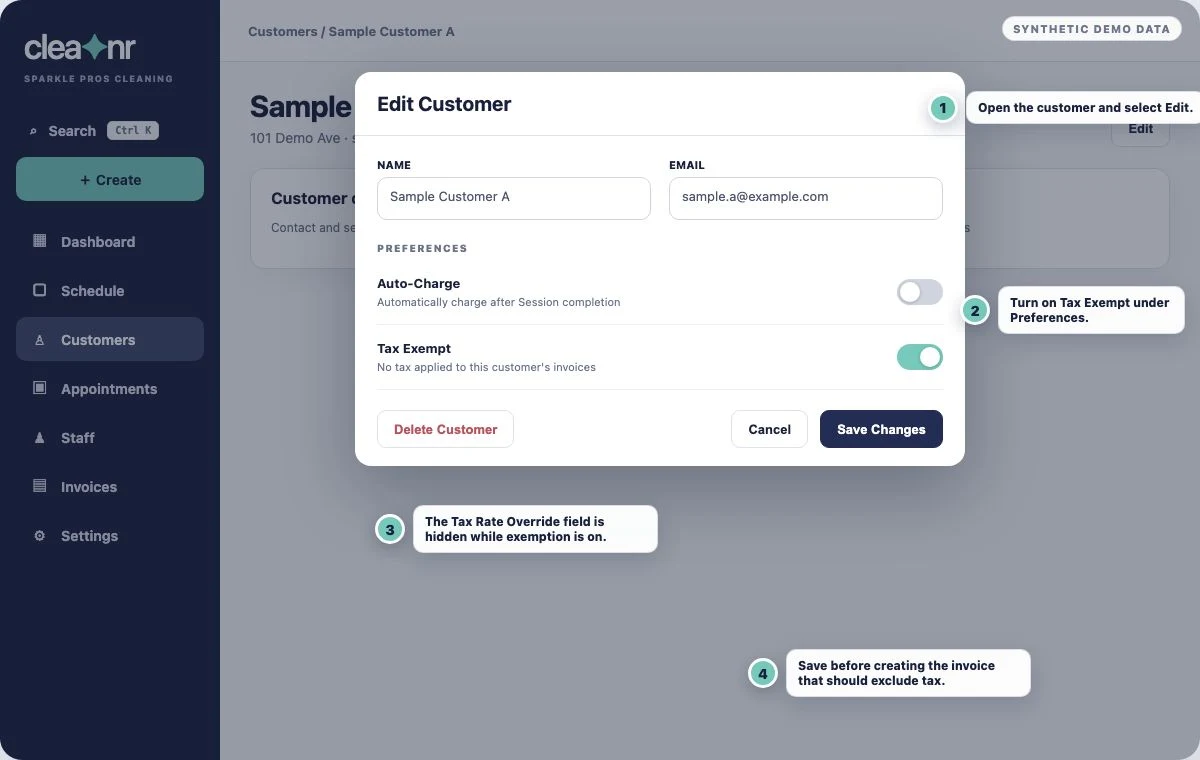
- Open Customers and choose the customer.
- Select Edit.
- Under Preferences, turn on Tax Exempt.
- Choose Save Changes.
You can also set Tax Exempt while adding a new customer.
- Open Customers and choose the customer.
- Tap Edit.
- Scroll to Tax and turn on Tax Exempt.
- Tap Save.
You can also set Tax Exempt while adding a new customer.
Verify the next invoice
Create or preview the next invoice from completed work and verify the tax result.
- On the web, the invoice preview identifies a Tax-exempt customer — no tax applied and shows the tax-inclusive total before billing.
- On iPhone, the completion sheet's displayed Total is pre-tax. Use the web when you need to review a tax-inclusive total before charging a saved card. After the iPhone creates the invoice, its detail should contain no Tax line for an exempt customer.
- On web, if the preview still shows tax, stop before sending. Reopen the customer, confirm the toggle saved, then start the invoice again.
- On iPhone, if the created invoice still shows tax, do not repeat the billing action. Use the unsettled- or settled-invoice recovery below.
Changing the customer does not recalculate an invoice that already exists. Existing invoices keep their stored amount and tax. If an unsettled invoice is wrong, do not send another reminder or collect it:
- Save the corrected customer tax setting.
- Open the incorrect invoice. On web, choose More actions → Delete Invoice; on iPhone, choose Delete Invoice.
- Confirm the Session returned to Ready to Invoice, then recreate the invoice from that workflow and verify the tax result.
Do not delete a settled invoice. Use the supported refund or accounting correction for money that already moved, and contact support when the correct path is unclear.
Understand the tax priority
For each new invoice, Cleanr resolves the tax setting in this order:
- Tax Exempt means no tax.
- Otherwise, a customer Tax Rate Override is used.
- Otherwise, the enabled business sales-tax rate is used.
- With none of those settings, no tax is added.
When Tax Exempt is on, the rate-override field is hidden. An override that was saved earlier can remain on the customer and take effect again if exemption is later turned off. Review the override before removing an exemption.
Cleanr applies a rate only to line items that match Services or Packages marked taxable. A custom or legacy line item that does not match a taxable catalog item may not receive tax, so always review the invoice total.
Use an override instead when appropriate
If the customer is not exempt but needs a different rate, leave Tax Exempt off. On web, enter a number from 0 to 100 in Tax Rate Override (%); on iPhone, use Tax Rate Override. Leave the field blank to use the business default. Configure the business default under Settings → Invoicing & Payments → Sales Tax on web or More → Invoicing → Sales Tax on iPhone.
Related guides
Was this guide helpful?
Feedback sends only this guide's path and your selected answer—never free text or account information.