
Create an invoice from completed work
Turn a completed Cleanr session into an invoice and review the charges before sending it.
Invoices begin with completed work in Cleanr. Complete the session, review its charges, then create the invoice for that customer.
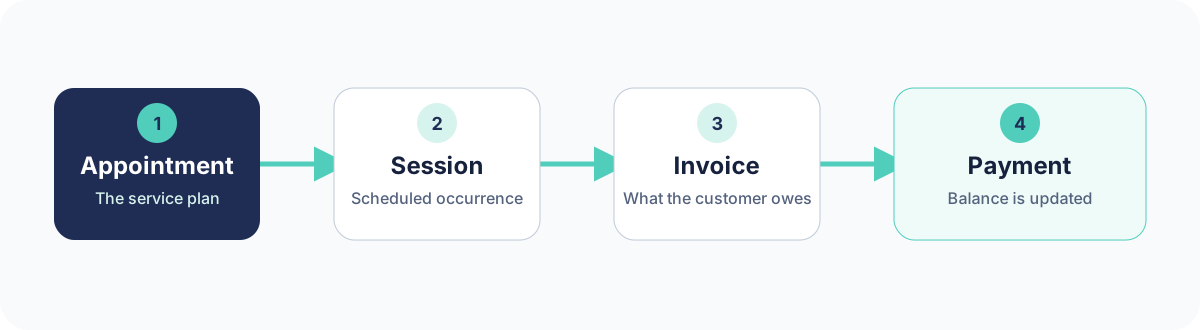
Cleanr does not have a standalone, arbitrary New Invoice flow. Start from a completed Session. On iPhone, you can adjust or add line items before creating the invoice.
Create the invoice
Choose your platform
- Open Invoices.
- In READY TO INVOICE, find the completed, uninvoiced Session with a positive price.
- Select Create Invoice, or use Create All Invoices after reviewing every eligible item.
- Open the new invoice and review the recipient, balance, and status before sending it.
- Open the completed Session or find it in Money → Action.
- Start Create Invoice.
- Review LINE ITEMS. Edit an existing charge or tap Add Charge when the completed work needs another line item.
- Add invoice notes if needed, then tap Create Invoice.
- Review the result before sending it to the customer.
If work is missing from the list
- Confirm the Session is completed, has not already been invoiced, and has a positive price.
- If completion needs to be undone, review the invoice state first. Reopening completed work can void a linked unpaid invoice; paid work must be refunded before it can be reopened on the web.
- Use search or the customer record to confirm an invoice was not already created.
Related guides
Was this guide helpful?
Feedback sends only this guide's path and your selected answer—never free text or account information.