
Recover or reactivate the Cleanr subscription
Update a failed Cleanr plan payment, restore ended access, and keep subscription billing separate from customer collections.
Use this workflow for the subscription your business pays for Cleanr. It is separate from the Stripe Connect payment account that collects customer invoices and sends payouts.
| What you see | Correct action |
|---|---|
| Payment Issue with a live subscription | Update the payment method in Billing |
| Access Ending with a future end date | Access continues through the displayed date; review Billing |
| Subscription Ended, Trial Ended, or Access Ended | Choose a new plan on the web when offered |
| Billing Link Missing or no recovery action | Contact support; do not start a duplicate checkout |
Only the Business Owner can manage subscription billing.
Continue after a free trial
New Cleanr trials last 14 days and do not require a credit card. Before your trial ends, open Settings → Account → Your Plan → Manage Billing on the web and add a payment method in Stripe's secure Billing portal.
If a payment method is on file, the monthly or yearly plan you selected starts billing when the trial ends unless you cancel. Without a payment method, the trial ends with no charge. Your account stays saved, and you can use the reactivation steps below when you are ready to continue. Existing trials and subscriptions retain their original terms.
Fix a past-due subscription payment
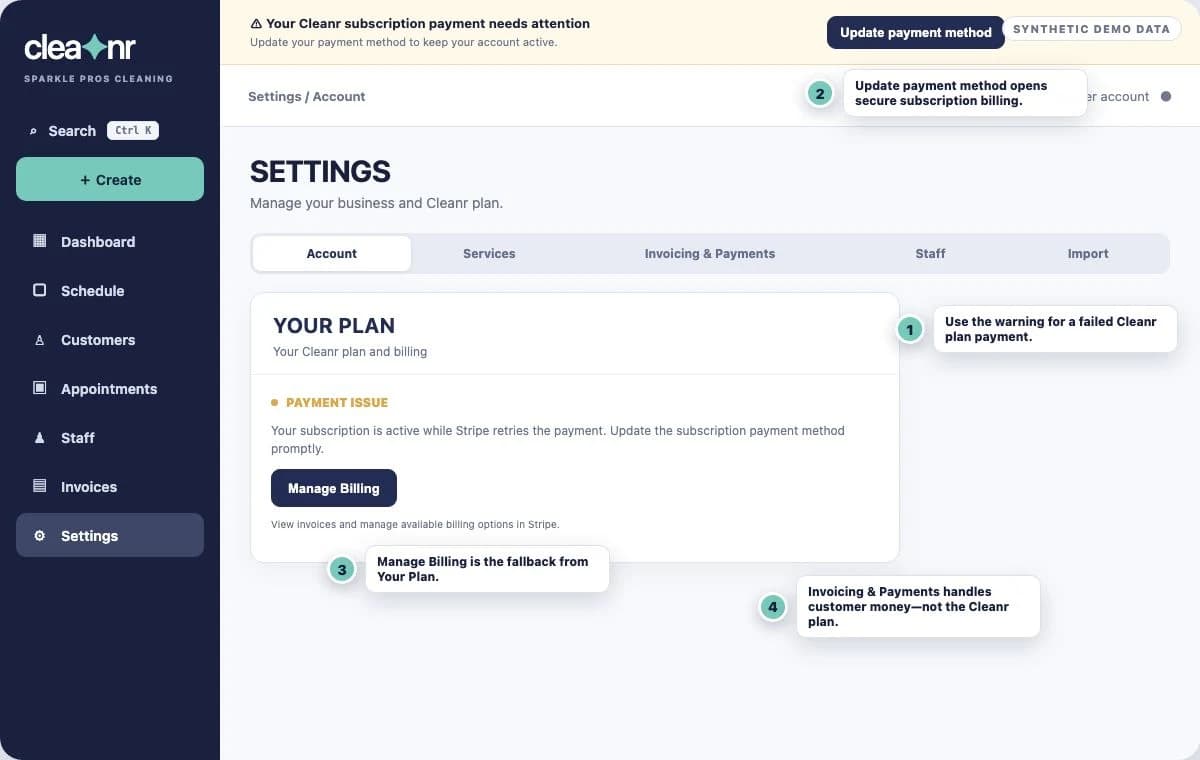
A past-due account with a live Stripe subscription remains active while Stripe retries the payment. Resolve it promptly using the persistent warning.
- In the warning Your Cleanr subscription payment needs attention, choose Update payment method.
- If the warning is not visible, open Settings → Account → Your Plan and choose Manage Billing.
- In the secure Stripe Billing portal, update the subscription payment method and review the subscription invoice.
- Return to Cleanr and confirm Your Plan no longer says Payment Issue.
- In the warning Subscription payment needs attention, tap Update payment method.
- You can also open More → Your Plan → Manage Billing.
- Update the subscription payment method in the secure Stripe page, then close the browser to return to Cleanr.
- Cleanr refreshes the account after the browser closes. Confirm the warning is gone.
Do not use Set up Cleanr Payments, Get Paid Online, Transactions, or the customer card-on-file flow for this problem. Those controls manage money your customers pay you, not the plan you pay Cleanr for.
Restore access after a plan ended
When no live subscription or paid-through access remains, the web Your Plan card can offer monthly and yearly reactivation:
- Sign in as the owner at
app.trycleanr.com. - Open Settings → Account → Your Plan.
- Choose the displayed monthly or yearly option.
- Finish secure Stripe Checkout. Reactivation starts billing immediately and does not include another free trial. Supported promotional codes can be entered in Checkout.
- Leave the Settings page open while Cleanr confirms the subscription. If confirmation is still processing, refresh Billing shortly.
On iPhone, an inactive-account screen provides Check access again, billing history when available, support, and sign out. The verified iPhone build does not sell a new subscription in the app. Complete reactivation in the web app, return to iPhone, then tap Check access again.
If the subscription was canceled but its paid-through date is still in the future, Cleanr continues access through that date and does not offer a second subscription yet. Use Manage Billing for the current record.
Troubleshooting
The payment method was updated but Payment Issue remains. Return from Stripe, refresh the page or app, and allow the signed Stripe update to finish. Do not start another subscription. If it remains unchanged, contact support.
Manage Billing is missing. The button appears only when Cleanr has a live subscription or retained Stripe billing customer. If the plan card offers monthly and yearly options, use that web reactivation flow. If it offers no action, contact support.
Checkout says activation is processing. Wait for Cleanr to confirm the completed Stripe checkout. Refresh Billing shortly; do not submit the plan a second time.
A Cleaner sees that business access is inactive. The Cleaner cannot change the subscription. The owner must resolve billing, then the Cleaner can use Check access again.
Billing will not open. Check the connection and sign-in session, then retry. If it still fails, use Help & Support. Never send a card number or verification code in a support request.
Related guides
Was this guide helpful?
Feedback sends only this guide's path and your selected answer—never free text or account information.