
Export timecards for payroll review
Download weekly time entries on the web or create a reviewed payroll snapshot on iPhone without sending data to a payroll provider.
Business Owners can export time records in two ways. Use the web download for a quick copy of the selected time entries. Use the iPhone payroll snapshot when you need reviewed, locked timecards and an immutable export record.
These exports are different. The web downloads raw entries for the selected week and staff filter. The iPhone flow requires reviewed timecards and copies an audited snapshot as CSV. Neither flow sends data to a payroll provider or determines wages, taxes, overtime, or labor-law compliance for you.
Export weekly entries on the web
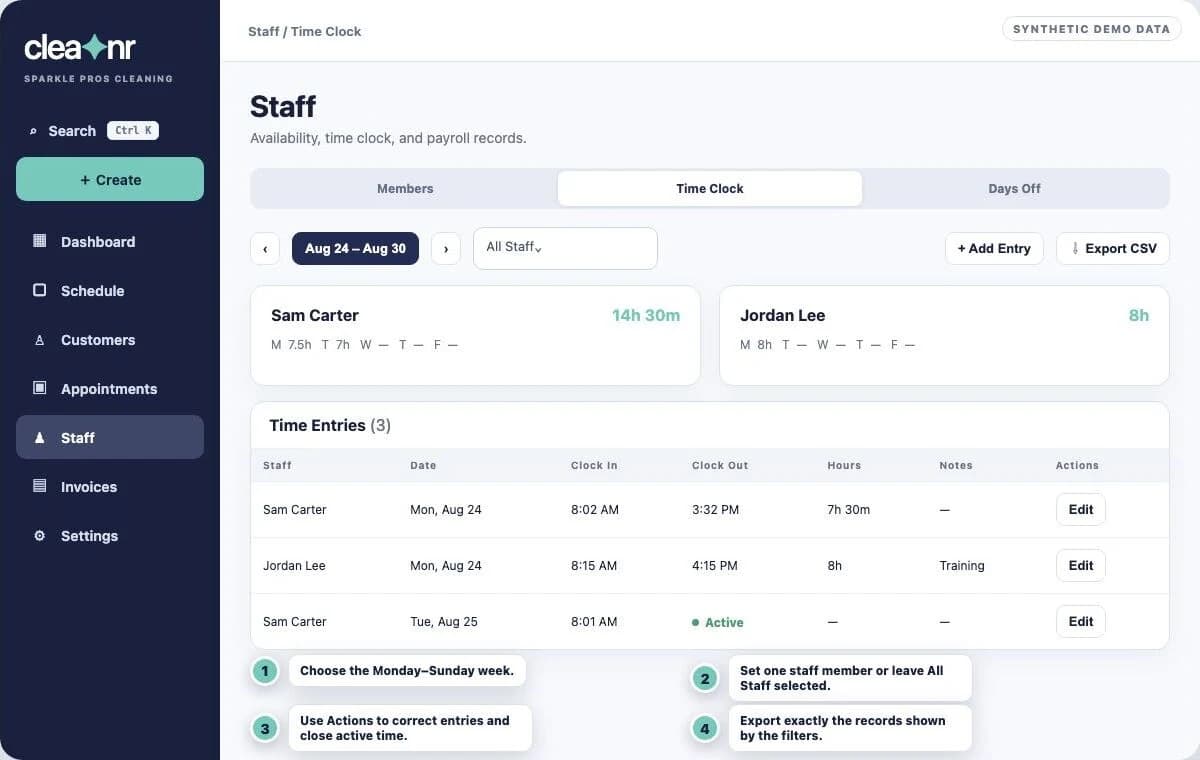
- Open Staff → Time Clock.
- Select the week. Cleanr uses a Monday–Sunday business week and lets you move through the current and earlier weeks.
- Leave All Staff selected or choose one staff member.
- Review Time Entries. Correct an entry, delete an incorrect entry, or use Add Entry before exporting.
- Make sure every included entry is closed. An open entry is exported with Active as its clock-out value and zero minutes.
- Select Export CSV. Cleanr downloads
timesheet_YYYY-MM-DD_to_YYYY-MM-DD.csvand shows Timesheet exported.
The file contains the entries currently shown by the week and staff filters. Its columns are Staff Member, Date, Clock In, Clock Out, Hours, Minutes, and Notes. Hours contains whole hours, while Minutes contains the full recorded duration.
If Export CSV is unavailable, the selected week and staff filter have no entries.
For a reviewed payroll artifact, use the iPhone snapshot workflow below.
Create a payroll snapshot on iPhone
Only a Business Owner can open this workflow, and it requires a connection.
- Open More → Profitability & Payroll → TIMECARDS.
- Select the week and staff member. Only closed time entries are available as source entries.
- If the page says No timecard prepared, select Prepare Timecard.
- Select the source entries. Classify unpaid breaks and overtime, then enter the regular and overtime wage totals, mileage reimbursement, other adjustment, and any review notes that apply.
- Save the draft, review its totals, and select Approve.
- Select Lock. A locked timecard is immutable and can be included in a payroll export snapshot.
- Open EXPORTS, verify the displayed week, and select Create Payroll Snapshot.
- Under EXPORT HISTORY, use the copy button for the payroll revision. Cleanr verifies the complete row count, copies the CSV to the iPhone clipboard, and shows CSV copied.
- Paste the CSV into your secure payroll or accounting workflow.
Lock only after review. To fix a locked timecard, select Correct and create a new draft revision, then approve and lock that revision. The original locked revision remains unchanged.
Recover a snapshot that did not finish
- If Unsent export retry preserved appears, reconnect and retry. Cleanr reconciles the same request instead of silently creating another one.
- Discard the preserved request only when you intend to abandon that export.
- If copying fails, refresh EXPORTS and try the revision again. Cleanr does not copy a snapshot unless it can verify all rows.
- Treat copied payroll data as sensitive and clear or replace it on the clipboard after moving it to the intended system.
Related guides
Was this guide helpful?
Feedback sends only this guide's path and your selected answer—never free text or account information.
Record days off and use timecards
Record full days away, set staff working hours, and track clock-in and clock-out entries in Cleanr.
Quotes, invoices, and payments
Move customer work from quote to invoice and payment, configure online collection, review transactions, and handle tax-exempt customers safely.