
Assign, reassign, and schedule unplanned work
Put Cleanr Sessions with the right staff, resolve unassigned work, and add dates to Appointments that are not scheduled.
Give every dated Session a responsible staff member before the day begins. Use the attention and unassigned views to find gaps, then review availability and route order before saving.
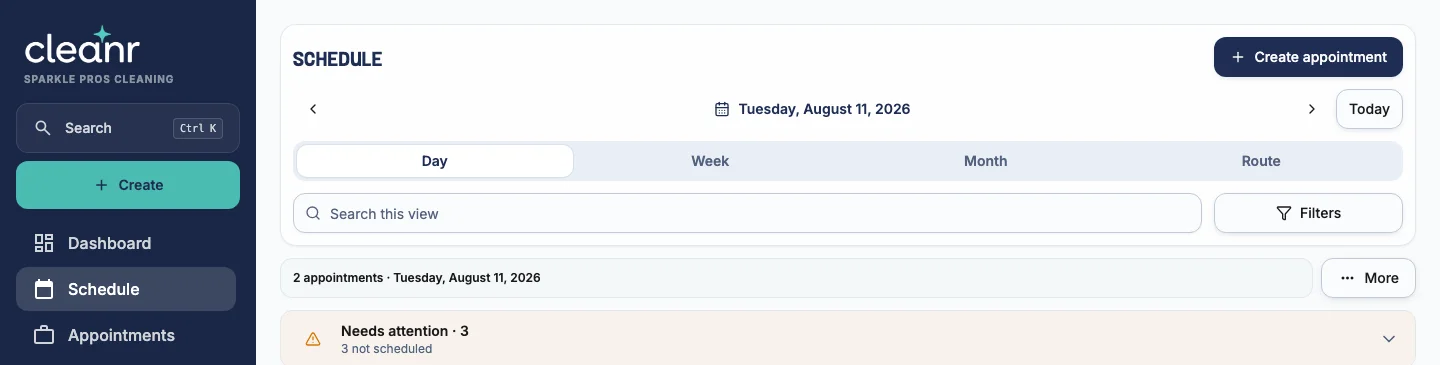
Assign or reassign dated work
- Open Schedule, then open Needs attention.
- For work without staff, select Assign staff and choose the person who should own the Session.
- To change an existing assignment, open the Session and select Reassign.
- Confirm the staff name on the Session and review the day for conflicts.
- As an owner, open Schedule → Day and choose the date.
- Tap Assign Staff to open ASSIGN APPOINTMENTS.
- Review the UNASSIGNED bucket and each staff bucket. Staff marked OFF have a day-off record for that date.
- Tap an Appointment card and choose a staff member. Cleanr warns before assigning someone marked unavailable.
- Reorder a person’s work or tap Suggest order when helpful.
- Tap Save Changes and confirm that the assignments appear on the Day schedule.
Add a date to unplanned work on the web
The NOT SCHEDULED sidebar contains Appointments that do not have a date. Open one, enter Date and Start time, then select Schedule. You can also drag an item from the sidebar to the calendar where that interaction is available.
This queue is different from the iPhone UNASSIGNED bucket: NOT SCHEDULED means the Appointment has no date, while UNASSIGNED means a dated Session does not have staff.
Group by area and Suggest order propose geographic groupings or sequence; they are not automatic dispatch decisions. Review exact times, duration, required team size, working hours, days off, and customer constraints before Save Changes. Avoid leaving active work unassigned.
Related guides
Was this guide helpful?
Feedback sends only this guide's path and your selected answer—never free text or account information.
Make multiple schedule changes safely
Use Cleanr's supported multi-record workflows for staff assignments, route order, and recurring work without changing the wrong Sessions.
Run today’s cleaning work
Find assigned Sessions, follow the route, track time and checklist progress, add photos, and finish each appointment with the correct status.