
Make multiple schedule changes safely
Use Cleanr's supported multi-record workflows for staff assignments, route order, and recurring work without changing the wrong Sessions.
Use the narrow workflow that matches the change you need. Cleanr does not currently have a general select-many editor for changing the date, time, staff, status, service, or price of unrelated Sessions in one action.
There is no general bulk date or time move on the Schedule. Review the scope in every confirmation; a recurring-series action affects one Appointment's Sessions, not unrelated work visible in the same week.
Choose a supported workflow
| Goal | Supported workflow | Scope |
|---|---|---|
| Assign or reassign several dated Sessions | iPhone Assign Staff | Staff assignments and route order for the selected day |
| Change stop order across a Smart Schedule preview | iPhone Plan week → Apply Route Order | Route order only; dates, times, and staff stay unchanged |
| Change one recurring Appointment | This and future Sessions or Edit recurring schedule | The selected Appointment's recurring series |
| Move unrelated Sessions to new dates or times | Edit or drag each Session separately | One Session per change |
Assign several Sessions on iPhone
- As an owner, open Schedule → Day and choose the date.
- Tap Assign Staff to open ASSIGN APPOINTMENTS.
- Tap each card, then choose the correct staff member or Unassign in the staff-selection sheet.
- Use Suggest order for one person's stop sequence or Group by area for a geographic proposal, then review every assignment.
- Tap Save Changes and confirm the Day schedule.
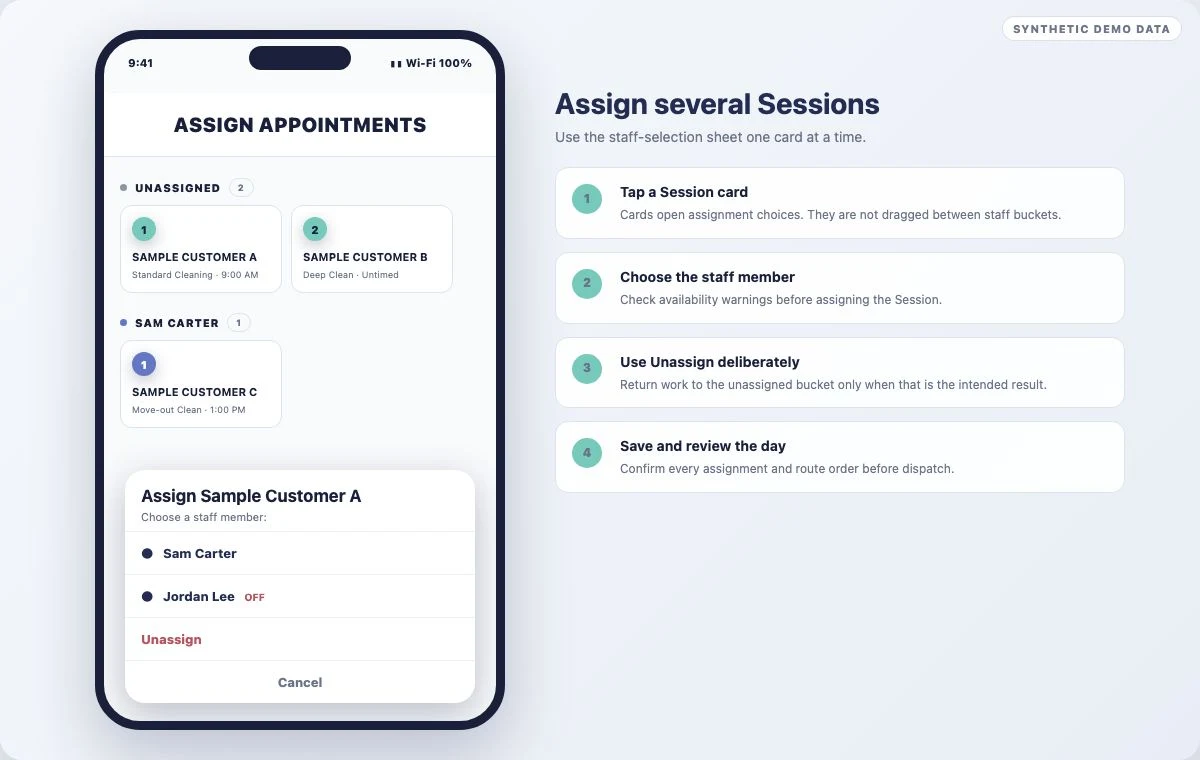
This workflow does not change dates, times, services, prices, statuses, or the recurring cadence. Group by area does not replace a review of required team size, working hours, days off, appointment windows, or customer constraints.
Change one recurring Appointment
Open a dated Session from the recurring Appointment. Use This and future Sessions for the limited future-scope change shown in the confirmation, or choose Edit recurring schedule › for the full cadence editor. Confirm the affected count before saving.
Open a Session from the recurring Appointment, select Edit, then Edit recurring schedule. Read the scope and regeneration warning in the editor before saving.
The recurring start date is locked in both editors. To use a new start date, end the current Appointment and create another. Changing cadence, preferred days, or end settings can regenerate eligible incomplete future Sessions. Review the confirmation for the dates Cleanr will reset, especially Sessions that were manually moved away from the cadence.
Change unrelated Sessions one at a time
On the web, move one Session at a time in Day or Week, or open its details and edit the date or time. Use the on-screen Undo immediately after an incorrect drag. On iPhone, open each Session and use its displayed move or edit action.
After several individual changes, review the target day by staff and check Needs attention for conflicts, missing staff, or work without a date.
Related guides
Was this guide helpful?
Feedback sends only this guide's path and your selected answer—never free text or account information.
Reschedule, skip, or change recurring work
Change one Cleanr Session without accidentally changing the recurring Appointment, or update the series when the cadence changes.
Assign, reassign, and schedule unplanned work
Put Cleanr Sessions with the right staff, resolve unassigned work, and add dates to Appointments that are not scheduled.