
Optimize route order safely
Choose the correct Cleanr route tool, understand where its order is saved, and review a route before dispatch.
Choose the route tool by what you need to save. Plan week and Order today's stops can save route order to the schedule; Optimize locally is a map preview stored only on that iPhone. The web Route view does not automatically optimize work.
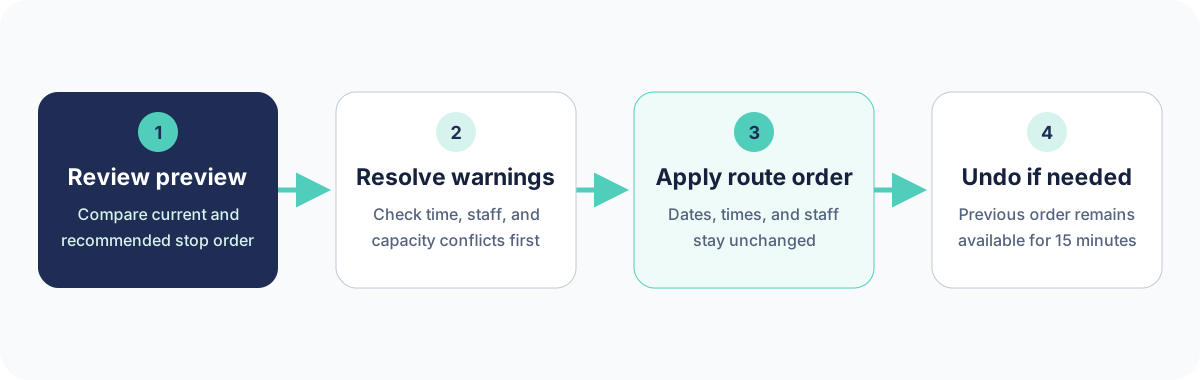
Know what each route action changes
| Action | Where it is available | Saved to the team schedule? | Dates, times, or staff change? |
|---|---|---|---|
| Plan week → Apply Route Order | iPhone, when Smart Schedule is enabled | Yes | No |
| Order today's stops | iPhone Day schedule, when the fallback action is available | Yes | No |
| Optimize locally | iPhone route map | No; the preview stays on that iPhone | No |
| Route view | Web Schedule | No; it is a map and route review | No |
Owner-only actions save route order. Staff can use the schedule and route map for the work they are allowed to see, but should not treat a local preview as a dispatch change.
Saved route order controls untimed Sessions. Fixed-time Sessions remain in scheduled-time order; change a fixed Session's start time when its visible sequence needs to change.
Save an optimized route order on iPhone
Plan the week with Smart Schedule
- From Schedule, tap Plan week.
- On OPTIMIZE ROUTES, compare the saved stop order with the proposed order. Review distance, drive-time, stop-move, capacity, and staffing warnings.
- Resolve blocking time, team, or capacity conflicts before applying.
- Tap Apply Route Order and confirm. Cleanr changes only the eligible untimed stop order; dates, times, and Staff stay the same.
- If needed, use Undo within 15 minutes. Undo stops safely when route inputs have changed since the apply.
Order one staff member's day
When Plan week is not available, open Schedule → Day, choose a named staff member, and tap Order today's stops. The action needs at least three unfinished stops with usable coordinates and an internet connection. Confirm the new sequence after Cleanr reloads the day.
Do not run this action while reviewing All or Unassigned as though those stops were one person's driving route. Select the staff member whose stop order you intend to save.
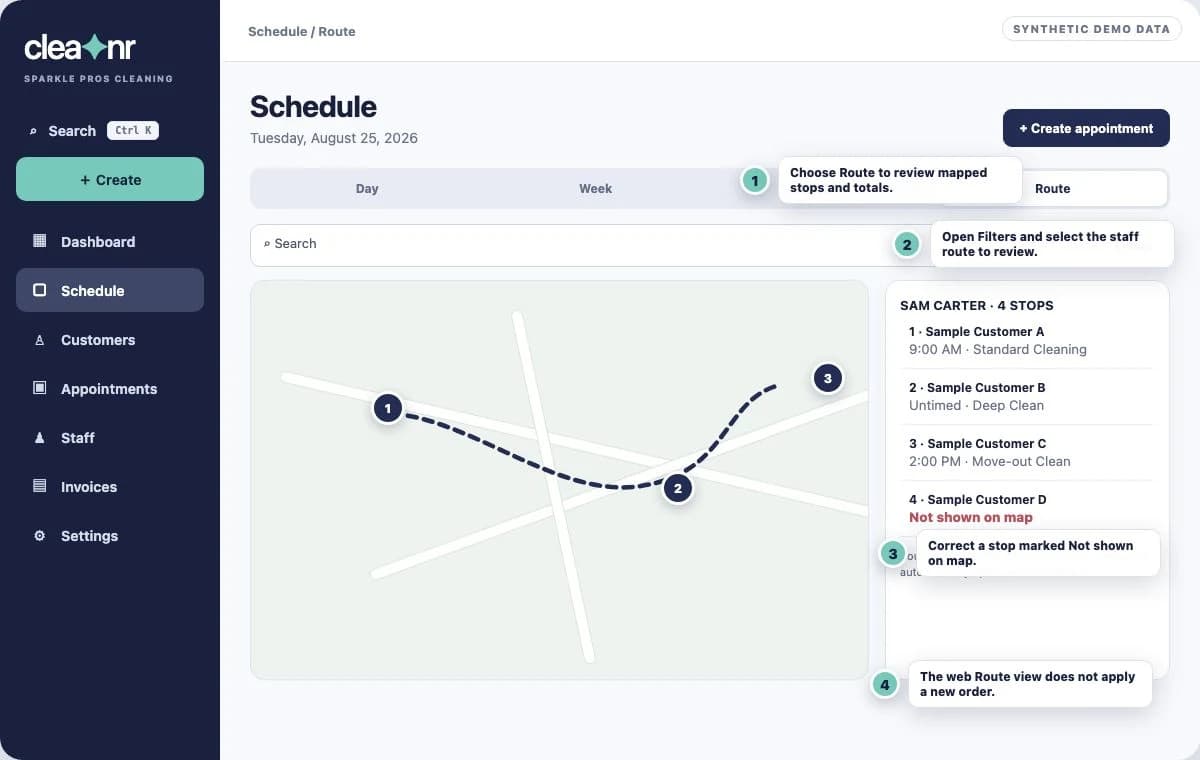
Automatic route optimization is not currently wired into the web Schedule. Open Schedule → Day or Week and drag untimed work one item at a time to adjust the order for one staff route. Cleanr offers a short Undo after a saved drag. A fixed-time Session cannot be dragged within the route; change its start time to alter its sequence.
Use Schedule → Route to inspect the mapped stops, route totals, and work without a usable address. The Route view itself does not apply a new order.
Use a local route-map preview
On iPhone, open the route map from the Day schedule or Today. Tap Optimize locally when an eligible staff route has at least three stops with coordinates. The badge ✓ On this iPhone means the display was reordered on that device; it does not mean the shared schedule was changed.
Use Get Directions for the selected stop. If the map falls back to straight lines or reports missing addresses, correct the customer service address and reload before judging drive time.
An optimized order is still a proposal. Confirm appointment windows, duration, required team size, staff availability, access instructions, and customer promises before dispatching the route.
Related guides
Was this guide helpful?
Feedback sends only this guide's path and your selected answer—never free text or account information.