
Fix missing notifications
Check Cleanr notification preferences, iPhone permission status, and the in-app notification feed when an alert does not arrive.
For an iPhone push alert to appear, Cleanr's saved preference and the iPhone's delivery permission must both allow it. The notification feeds on web and iPhone are separate from the iPhone system prompt and require a connection.
Restore iPhone delivery
- Open More → Notifications.
- Under DEVICE DELIVERY, check iPhone notifications.
- If it says Not enabled, select Enable and respond to the iOS prompt.
- If it says Blocked or Provisional, select Open Settings and allow the iPhone alert behavior you want for Cleanr.
- Return to Cleanr and enable the matching notification category.
- Reconnect if needed, close and reopen Cleanr, then recheck the setting.
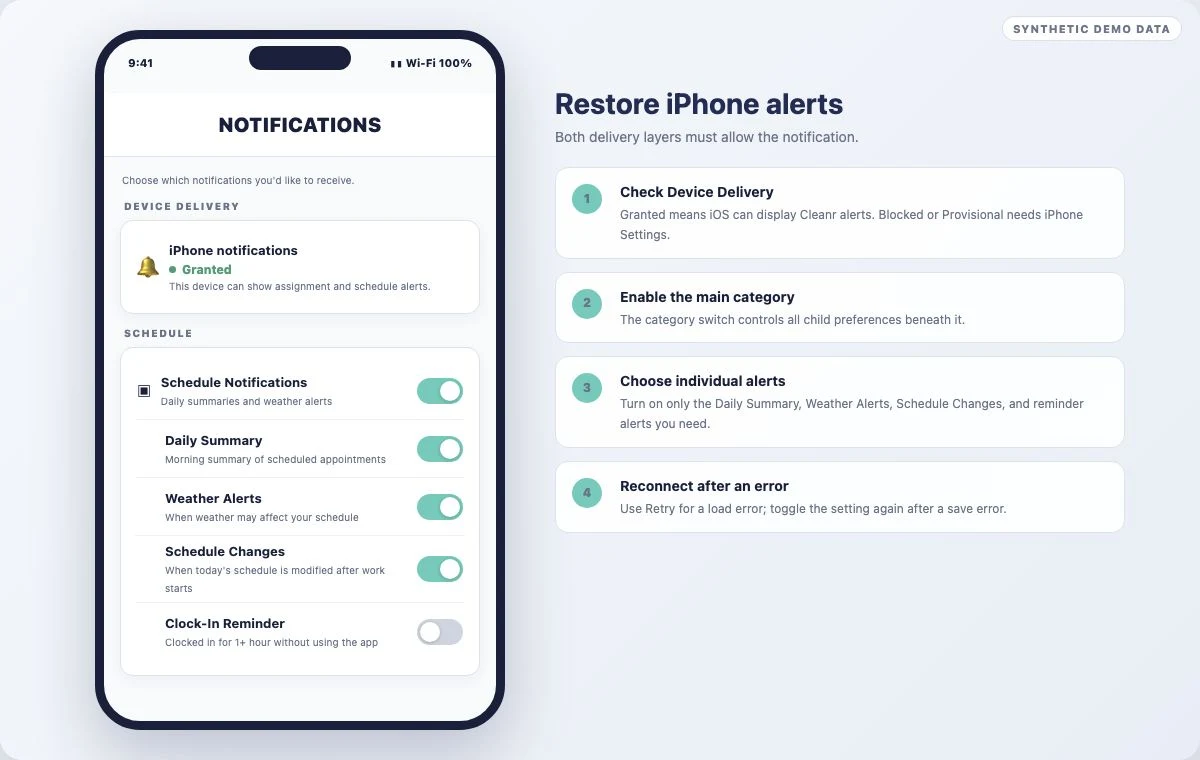
| Device Delivery status | Meaning |
|---|---|
| Granted | This iPhone can display Cleanr assignment and schedule alerts. |
| Provisional | Alerts may arrive quietly; use Open Settings to allow banners or sounds. |
| Blocked | Cleanr preferences can stay saved, but iOS cannot deliver the alerts. |
| Not enabled | Select Enable to request iPhone permission. |
| Unavailable | Push permission is not available on this device. Push delivery also requires a physical iPhone. |
Changing a Cleanr preference does not override an iPhone-level block. Cleanr does not provide a Send test notification control, so verify the two layers instead of waiting for a test alert.
Check the Cleanr preference
All users can control Schedule Notifications, including Daily Summary, Weather Alerts, Schedule Changes, and Clock-In Reminder. Business Owners also see:
- Payment Notifications for payment received, payment overdue, and invoice sent alerts.
- Staff Notifications for Appointment Started and Appointment Completed alerts.
- General Alerts for new customers and proposal follow-up.
Turning a main category off turns off its child choices. Turning the main category on enables its children, and enabling one child also enables its main category. Cleanr saves these preferences to the account. Reconnect after an error: select Retry when the settings did not load, or toggle the setting again when a change did not save.
Check the in-app feed
- Select the notification bell in Cleanr's navigation.
- Open the relevant notification, or use Mark all read.
- Use Clear all only when you intend to remove the feed items.
- If the list does not refresh, check the connection and reload the page.
The web feed does not provide browser or desktop-system push notifications. It shows Cleanr's connected in-app feed.
- As a Business Owner, select the notification bell from Home.
- Open the relevant notification, or use Mark all read.
- If the feed says it could not load or refresh, reconnect and select Retry.
The iPhone delivery permission controls system push display. It does not prevent you from reading notification rows that are already in the connected in-app feed. Cleaners do not currently have an iPhone navigation entry for this feed; they can still manage Schedule Notifications under More → Notifications and receive allowed push alerts.
If one person still receives nothing
- Confirm they are signed into the intended Cleanr account and business.
- Check that the relevant category is enabled for that user; owner-only categories are not shown to a Cleaner.
- Recheck DEVICE DELIVERY on the iPhone that should receive the alert.
- Reopen Cleanr while connected so its existing push permission and device registration can refresh.
- If permission is granted and the feed contains the notification but push remains missing—or if the feed is also missing the event—report the notification type, account, and approximate time through Cleanr support.
Related guides
Was this guide helpful?
Feedback sends only this guide's path and your selected answer—never free text or account information.
Work offline and sync saved changes
Learn which Cleanr iPhone actions work offline, prepare saved schedule data, and safely retry or review changes that have not synced.
Fix camera and Session photo problems
Restore iPhone camera or library access, meet web upload limits, and recover Session photos that are pending or need retry.