
Work offline and sync saved changes
Learn which Cleanr iPhone actions work offline, prepare saved schedule data, and safely retry or review changes that have not synced.
Cleanr can show previously loaded schedule data and save a limited set of field actions on iPhone when the connection drops. Reconnect and confirm the Schedule sync banner before treating those changes as complete.
Offline support is limited to iPhone. Cleanr on the web requires a connection. On iPhone, only the actions listed below are queued; creating a customer or appointment, changing assignments or settings, and invoice or payment work still require a connection.
Prepare before losing connection
- While online, open Schedule on the iPhone.
- Load the day, week, or month and staff filter you expect to use. Offline Cleanr can show only schedule data that this iPhone has already saved.
- Review the addresses and instructions you expect to need. A saved schedule does not guarantee that every related customer, checklist, or photo screen will load offline.
- Confirm the Schedule banner says Online · Changes synced before leaving coverage.
Saved schedule reads are temporary. Old cached schedule data is cleaned up, and a day that was never loaded can show No saved schedule is available for this day. A saved week or month may also identify dates that are missing.
Actions Cleanr can save offline
| iPhone action | Offline behavior |
|---|---|
| Start or complete a Session | Saved on this iPhone and queued for sync |
| Clock in or clock out | Saved on this iPhone and queued for sync |
| Mark a checklist item | Saved on this iPhone and queued for sync |
| Add a before or after Session photo | Queued only when Cleanr can make a durable local copy of the photo |
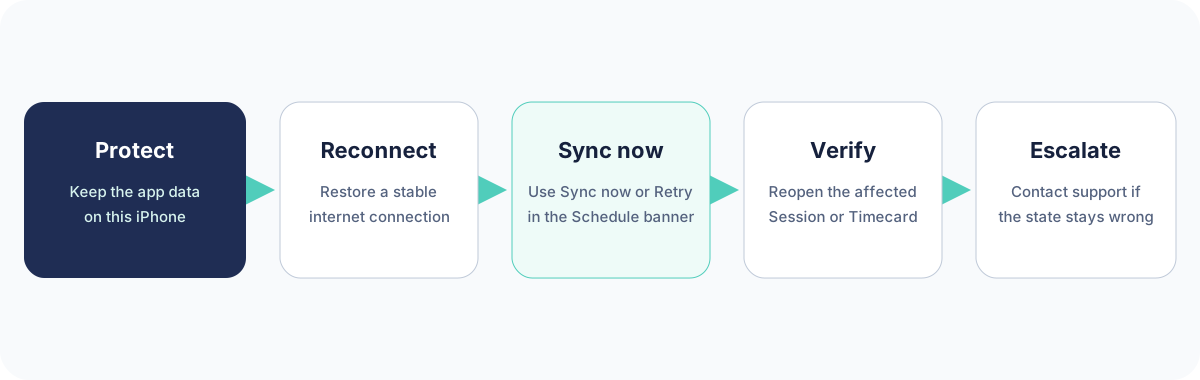
An action shown as saved is not yet confirmed by the server. Keep the app and its local data on the iPhone until all changes have synced.
Sync saved changes
- Reconnect the iPhone to a reliable network.
- Return to Schedule. Cleanr automatically attempts to sync when the connection returns and also checks when the Schedule opens or refreshes.
- If changes remain, select Sync now or Retry in the Schedule banner.
- Wait for Online · Changes synced.
- Reopen the affected Session or Timecard and verify its final state.
Respond to the sync banner
| Banner status | What to do |
|---|---|
| Offline | Keep working only with saved data and supported actions; reconnect before starting unsupported work. |
| Syncing changes… | Keep Cleanr open and wait for the attempt to finish. |
| changes waiting to sync | Select Sync now, then verify the affected record. |
| changes need attention | Reconnect, select Retry, and review the affected Session, Timecard, checklist, or photo. Failed changes remain saved on this iPhone. |
| changes conflict with newer updates | Open the affected Session or Timecard and review the newer server state. The saved change was not discarded, and Retry does not resolve a conflict by itself. |
| Couldn’t check saved changes | Select Retry. Cleanr has not discarded the queue. |
Automatic attempts stop after repeated failures so Cleanr does not retry forever. Retry resets failed actions for another attempt; conflicts still need a record-level review.
Protect unsynced work
- Do not uninstall Cleanr or clear its app data while changes are pending.
- The queue is tied to the Cleanr business and user on this iPhone. Switching accounts does not send one account's changes through another account.
- Normal sign-out clears saved schedule reads but preserves pending actions so the same user can resume them later.
- If a photo says Needs retry, resolve it before completing the Session.
Related guides
Was this guide helpful?
Feedback sends only this guide's path and your selected answer—never free text or account information.
Fix common Cleanr problems
Recover safely from offline changes, missing notifications, camera or photo trouble, and customer payment problems without duplicating work.
Fix missing notifications
Check Cleanr notification preferences, iPhone permission status, and the in-app notification feed when an alert does not arrive.