
Add and find customers
Create a complete Cleanr customer record, then search, filter, and open it from the web or iPhone app.
A useful customer record starts with a name and service address. Add phone and email when possible so Cleanr can support calls, texts, invoices, and receipts.
Before you start
Check the list for the customer's name, phone, email, or address. Reusing the existing record keeps appointment and invoice history together.
Add a customer
- Open Customers.
- Choose New Customer.
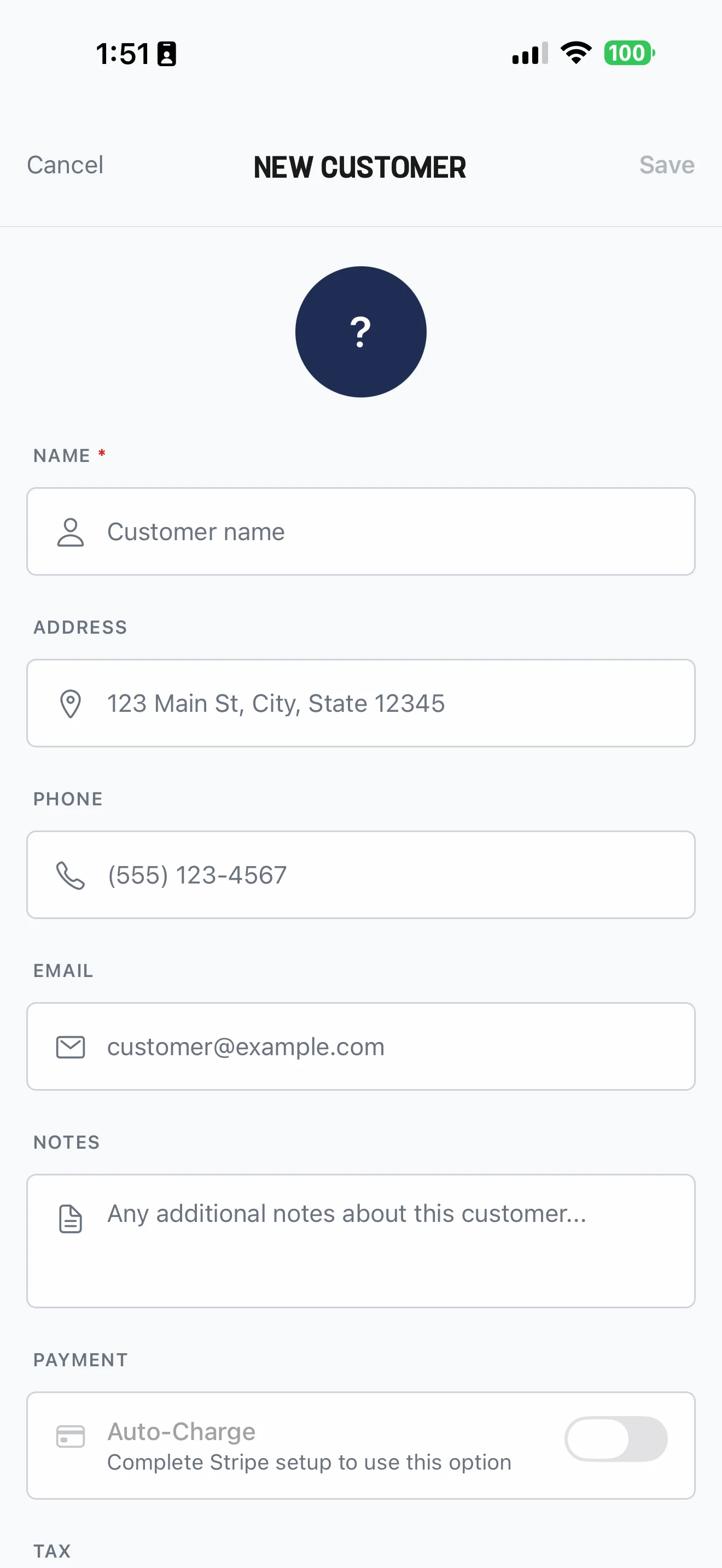
- Enter the customer's Name. Add their service Address, Phone, Email, and any durable customer notes.
- Set tax or auto-charge preferences only when they apply and payment processing is ready.
- Choose New Customer.
To change the record later, open the customer, choose Edit, make the changes in Edit Customer, and save.
- Open Customers, then tap the create + button and choose New Customer. The empty list also offers New Customer.
- Enter Name. Add the address, phone, email, and notes that will help with scheduling and communication.
- Review payment and tax preferences if those controls are available.
- Tap Save.
Find the right customer
- Search by name. The web also matches address, phone, and email. On iPhone, enter at least two characters to search the full customer list.
- Use All, Active, or New to narrow the list.
- Sort when you need an alphabetical, recent, or revenue view. Financial totals are owner-only.
- Open a row to see contact information and history. Continue with Use the customer workspace.
Troubleshooting
Save is unavailable. Enter a customer name. If a phone number is present, use a complete number; if an email is present, check its format.
A customer is missing from search. Clear the status filter and enter at least two characters on iPhone. Refresh the list if the customer was just added on another device.
Two records exist for one customer. Stop adding new appointments until the owner confirms which record contains the correct history. If you need help cleaning up the duplicate, contact Cleanr support.
Was this guide helpful?
Feedback sends only this guide's path and your selected answer—never free text or account information.