
Search Cleanr
Find customers, Sessions, invoices, quotes, and pages quickly from the Cleanr web app.
Use the web app's global search to jump to a customer, Session, record, or page without working through each list. Search results follow your Cleanr role.
Open global search
- Select Search in the web navigation, or press Ctrl+K on Windows and Command+K on a Mac.
- Enter at least two characters in Enter a name or number.
- Select a result, or use the up and down arrow keys and press Enter.
- Press Esc to close search without opening a result.
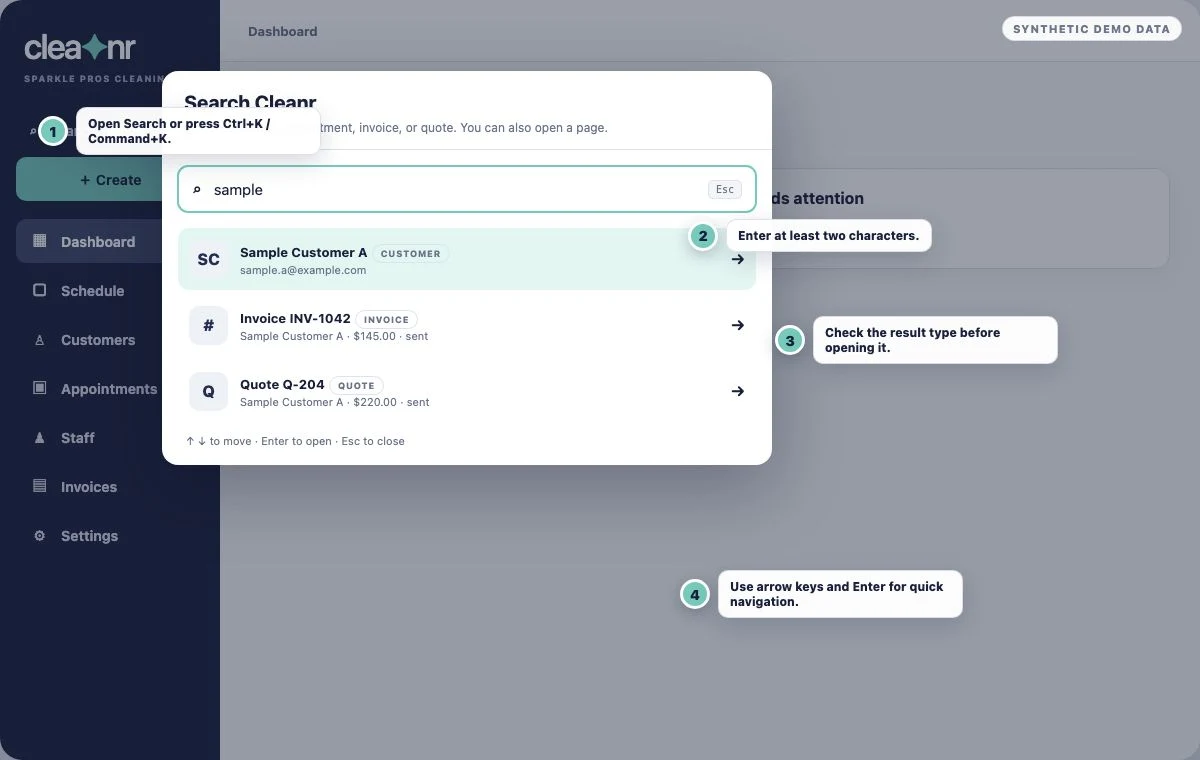
Before you type, search shows the pages your role can open. Owners can go to Schedule, Customers, Appointments, Invoices, Quotes, and Settings. Staff can go to Schedule, Customers, and Appointments.
Use a search term that matches the record
| You need | Search by |
|---|---|
| Customer | Name, email, phone, or address |
| Session | The customer's name, email, phone, or address |
| Invoice | Invoice number or customer |
| Quote | Quote number, contact name, or customer |
| Page | Page name, such as schedule, customers, or appointments |
Session search starts from a matching customer and then returns nearby upcoming and recent Sessions. A service title, date, or status by itself is not a reliable global-search term. Open Schedule or Appointments and use its filters for a broader history search.
Only owners receive invoice, quote, and Settings results. Staff search excludes those owner-only destinations even when the search text matches.
If the expected result is missing
- Enter two or more characters and remove extra words that may not match the same record.
- Try the customer's phone number, email address, or street address when names are similar.
- Use the exact invoice or quote number when you have it.
- Open the relevant list for an exhaustive review. Global search returns a short, ranked set of the best matches rather than every matching record.
- Close Search Cleanr and try again if it says results could not load.
The native iPhone app does not currently include this global search. Use search and filters within the relevant iPhone screen instead.
Related guides
Was this guide helpful?
Feedback sends only this guide's path and your selected answer—never free text or account information.