
Import customers from Jobber
Move Jobber client records into Cleanr from a CSV, verify the field mapping, and avoid duplicate customer records.
Import Jobber clients into Cleanr before rebuilding their future work. The import creates customer records only; it does not move jobs, visits, invoices, payments, quotes, attachments, tags, or custom fields.
Search Cleanr for existing customers before importing. Cleanr skips a repeat Jobber row when its normalized Name + Address matches an earlier Jobber import, but it does not merge the row into a customer that was created manually.
Export the client CSV from Jobber
- In Jobber, open Clients.
- Use More Actions → Export Clients, choose CSV, and request the export. Jobber emails the file when it is ready.
- If Jobber sends more than one CSV, keep the files separate. You can import each one in Cleanr.
Jobber can change its navigation. If those labels differ in your account, use Jobber's current client-export instructions.
Upload and map the file
- In Cleanr on the web, open Settings → Import.
- Under IMPORT FROM JOBBER, select the CSV file. The maximum file size is 20 MB.
- Review Cleanr's suggested mapping for Name, Address, Phone, Email, and Notes.
- Map at least one source column to both Name and Address. You can combine columns such as first and last name or street, city, state, and ZIP.
- Select Continue to preview.
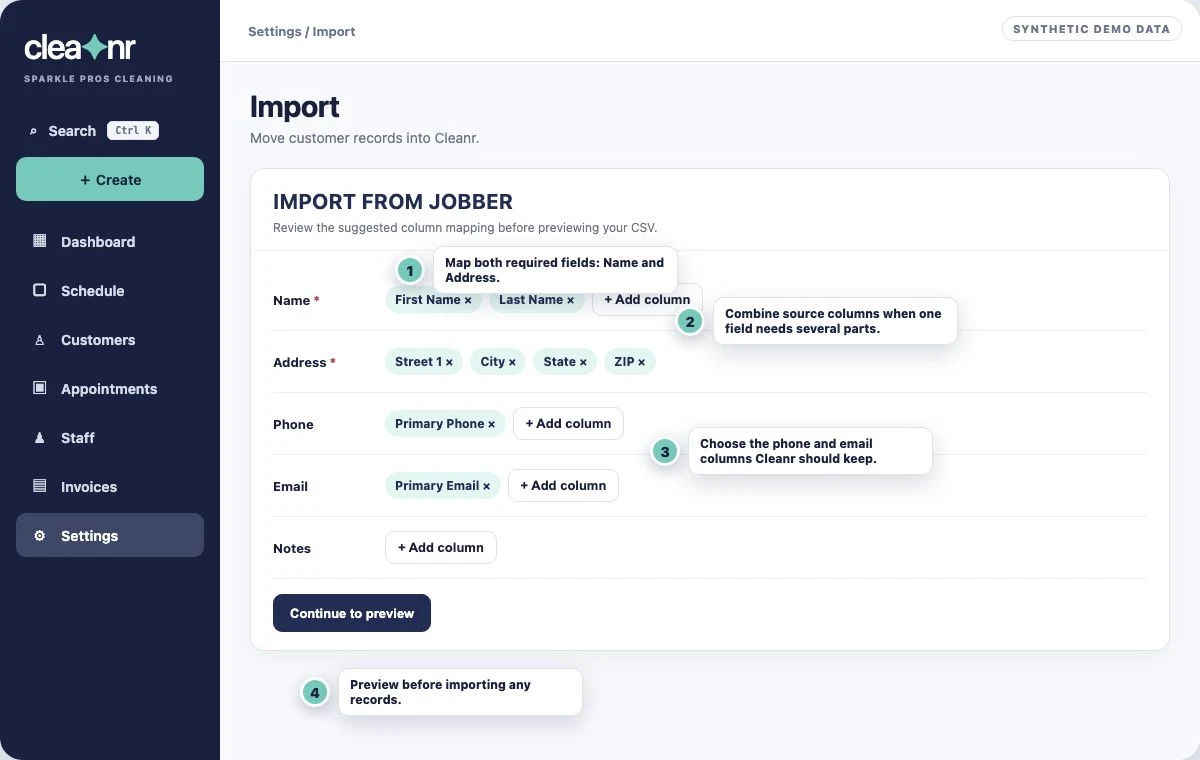
Phone and email use the first non-empty mapped value for each customer. If the file has several phone or email columns, choose the one Cleanr should keep.
Preview and confirm
- Check the displayed names, addresses, phone numbers, and email addresses. Cleanr checks the first five CSV rows for the preview and displays the rows that contain both a mapped name and address.
- Select Back if a field is assembled incorrectly, then adjust the mapping.
- Select Confirm import.
- Read the final imported and skipped-duplicate counts. Select Import another file when Jobber produced another CSV.
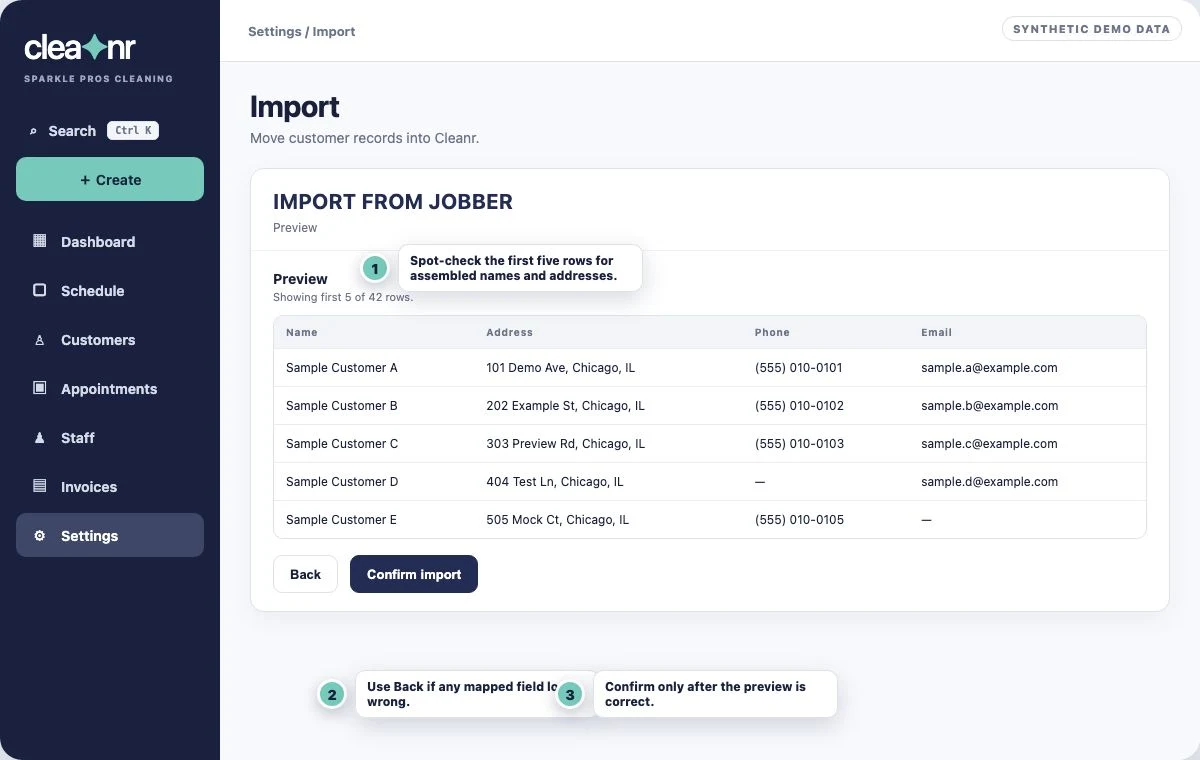
Rows without a mapped name or address are not imported. After the import, open Customers and spot-check names, addresses, contact details, and notes before creating Appointments.
Avoid duplicate or incomplete records
- Re-uploading the unchanged Jobber row is safe: Cleanr skips it.
- Changing the customer's name or address changes the duplicate key, so the row can create another customer.
- A manually entered Cleanr customer is not automatically matched to a Jobber import. Keep the correct record and resolve duplicates before scheduling.
- If Cleanr reports a CSV parse error, export a new CSV instead of a spreadsheet or PDF. Correct malformed email values and try again.
- If the file is over 20 MB, split it into smaller CSV files and import them one at a time.
Related guides
Was this guide helpful?
Feedback sends only this guide's path and your selected answer—never free text or account information.