
Choose between the web and iPhone workspaces
Pick the fastest Cleanr workspace for planning, field work, customer records, and account settings.
Cleanr has two connected workspaces for Business Owners. Use the web for planning and review, and the iPhone app for work that happens on the move. Cleaners use the iPhone app for their standard daily workflow.
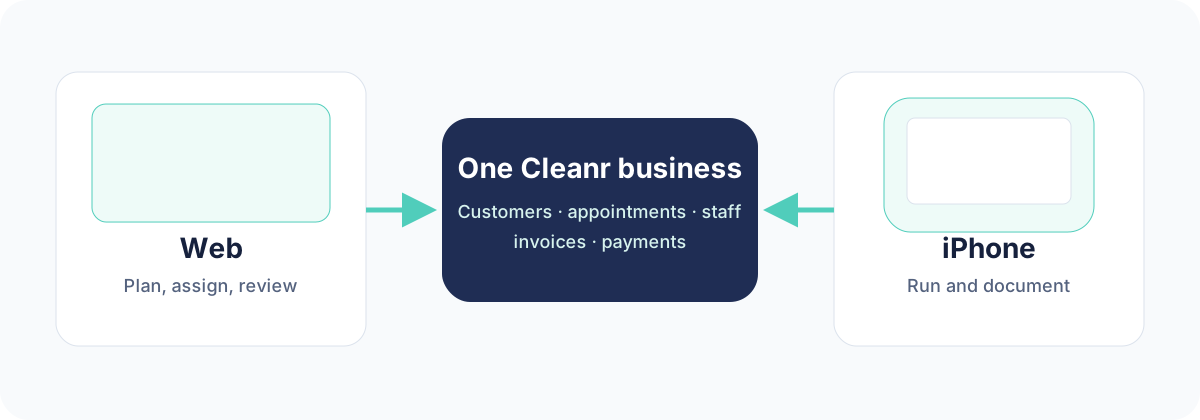
Pick the fastest workspace
| What you need to do | Best place to start |
|---|---|
| Plan in Today, Schedule, Customers, Appointments, or Staff | Web at app.trycleanr.com |
| Review Invoices, Quotes, or Expenses; review Transactions after online payments are connected | Web at app.trycleanr.com |
| Open today's route, contact a customer, document a session, or work through a checklist | Cleanr on iPhone |
| Add a customer or appointment as a Business Owner | Either owner workspace; the screens and navigation differ |
| Configure the business, payment processing, or catalog | Web Settings for the broadest view; iPhone More for mobile owner controls |
Changes are saved to the same Cleanr business. A customer or appointment added on one workspace appears on the other after it refreshes.
Understand the shared records
- A customer holds contact details and service locations.
- An appointment is the service plan. A recurring appointment creates multiple scheduled sessions.
- A completed session can produce an invoice according to its billing path; a payment then updates the balance.
Learn the customer structure in Use the customer workspace, or follow Book your first appointment for a complete first workflow.
Account and role differences
On the first iPhone screen, choose Business Owner to manage the business or Cleaner to join an owner's invite. Business Owners sign in with email and password and can use both workspaces. Cleaners sign in on iPhone with the invited phone number and a verification code. Cleaner screens focus on assigned work and do not mirror the owner's web navigation.
Navigation labels are not identical. For example, the catalog is Services under web Settings and Packages in the iPhone app. Guides show separate Web and iPhone paths whenever this matters.
If a change is missing
- Confirm both devices are signed into the same Cleanr business.
- On iPhone, pull down to refresh the current list. On the web, reload the page.
- Check the connection before entering the same record again; retrying by creating a duplicate can leave two customers or appointments.
- If a Cleaner sees the wrong business, have the owner verify the invite and phone number. See Invite and manage staff.
Was this guide helpful?
Feedback sends only this guide's path and your selected answer—never free text or account information.