
Book your first appointment
Add the first customer and cleaning package, choose a date, and confirm the appointment on the Cleanr schedule.
The shortest first win in Cleanr is a customer, a cleaning service or package, and one scheduled appointment.
Before you start
For the web wizard, have the customer's name, the service, and the date. On iPhone, also have the service address, estimated duration, exact start time, and Staff assignment. Confirm the business time zone first in iPhone More → Business Time Zone.
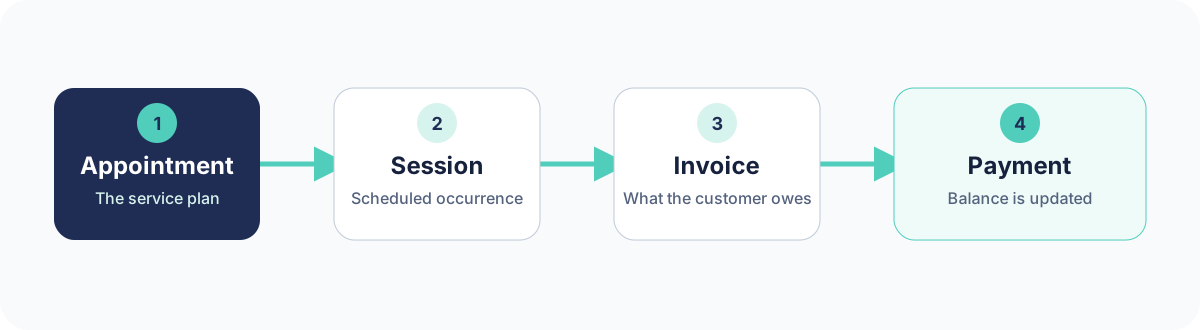
Booking an appointment does not create an arbitrary standalone invoice. A completed session follows its configured billing path. See Create and send invoices when the work is done.
Shortest successful path
- After signup, choose Book My First Appointment, then Get started in the three-step wizard.
- Under Customer, choose an existing customer or add a new one and continue.
- Under Package, choose a saved service, or type a one-off line and an optional price. A typed line is used only for this appointment; it does not create a reusable item in Settings → Services.
- Under Schedule, choose the date and add optional notes.
- Review the customer and service, then choose Schedule it.
The web first-appointment wizard does not ask for an exact start time or Staff assignment. Assign and time the scheduled session afterward when needed. See Assign staff.
- Tap the create + button and choose New Appointment.
- On a brand-new business, tap Get started → to use the three-step first appointment setup.
- Add or choose the customer. Add a service address when available.
- Add or choose a Package, then confirm its estimated duration and optional default price.
- Choose the date and exact start time. Select Staff or leave it unassigned.
- Resolve any capacity warning, then tap Create appointment →.
- On the confirmation screen, choose View Schedule or View Appointment details.
If you skip the guided setup, the full form requires a customer, an active service property, a package or custom line item, a date, and an exact start time.
Confirm it worked
Open Schedule and go to the selected date. On the web, confirm the customer and service, then add timing or Staff if needed. On iPhone, confirm the customer, package, exact time, and Staff choice.
Next, learn how to use schedule views and filters or start and document a session.
Troubleshooting
The customer is unavailable on iPhone. Open the customer and add an active service location under Properties & Contacts, then reopen the appointment.
No service or package appears. Confirm it is active. On the web, use Settings → Services; on iPhone, use More → Packages.
The appointment is on the wrong day or time. Check the business time zone, then edit or move the appointment. Device time zone and business time zone can be different.
iPhone capacity needs review. Check the duration, exact time, and Staff selection. Only acknowledge a conflict after deciding how the work will be covered.
Was this guide helpful?
Feedback sends only this guide's path and your selected answer—never free text or account information.